How to set up a second monitor on your Windows 10 PC
- lizbethsoriano1145
- Nov 20, 2021
- 1 min read

Items you will need:
HDMI, VGA, USB cable
Extra monitor


1.) Connect your display cable of choice to the monitor
2.) Connect the other end of the cable into the back of your laptop or PC’s graphics card if using a desktop.
3.) Turn on both monitors and PC
4.) After signing into Windows, click the windows icon on the bottom left of your taskbar.
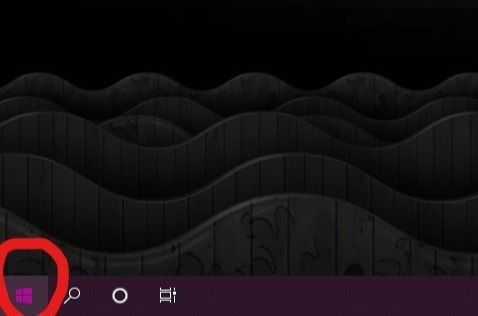
5.) Click on settings.
6.) Click “system”

7.) Click the display tab (it should be the first one at the upper left of the screen)
8.) 1 is your main monitor, if your new display is not detected click “detect display.”
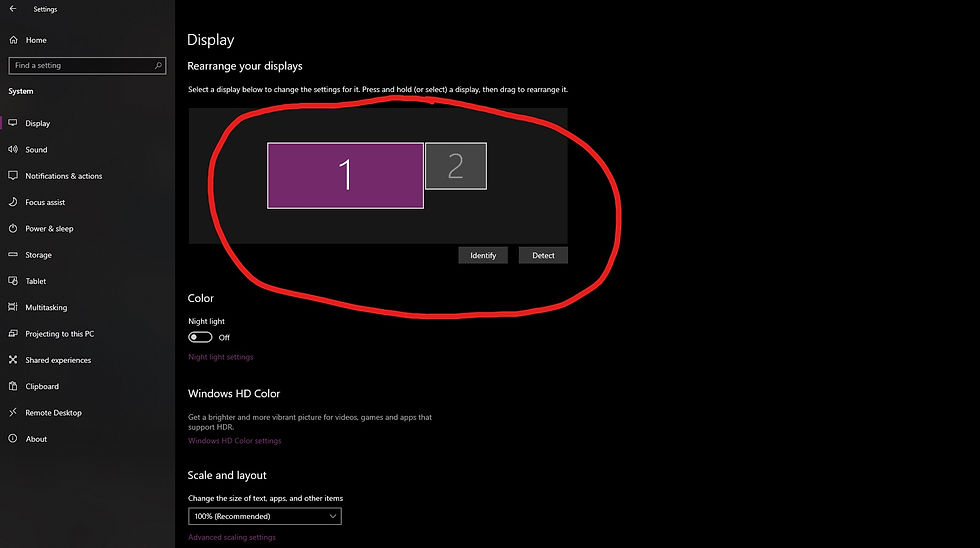
9.) You can click and drag display 1 and 2 so that they reflect their real life positions. This will allow for easier movement for your mouse when sliding it from one display to another.
10.) Click apply once you’re satisfied with your placement.
11.) Go to the multiple displays option where you would click on “extend these displays”
Duplicate these display: show same images for both screen
Show 1 : show only on the main monitor
Show 2: show only on the second monitor
11.) May have to fix the resolution if it need adjustments

12.) You can change the resolution of either monitor two or one and it won't affect the other.
Comments