How to connect your phone to Windows Computer
1.) Make sure your phone and computer are connected to the same wifi
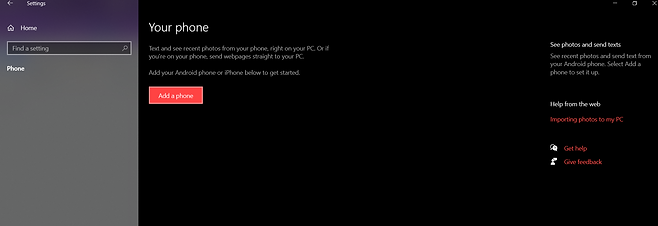
2.) On windows 10, open settings, then click “phone.
3.) Sign in to your Microsoft account if you aren’t already and then click “add a phone.”
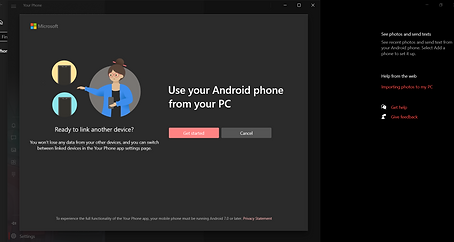
4.) Click "Get Started"
5.) If your phone has the “link to windows” feature you can input a code by pairing it. manually (selected Samsung phones)
5a.) If not, you need to download the app where you must sign in to proceeds with the next steps in the play store or galaxy store
5b.) Once you have the app, you need to sign in to your Microsoft account, but it should be the same as the one used on your PC.
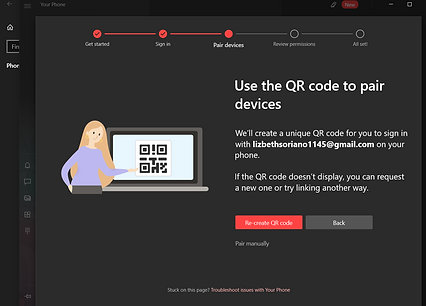
6.) Then, you will click the check mark on your computer in order to access the "pair with QR" or "pair manually" button.
7.)On your computer click "re-create QR" you will then be shown a QR code where you can use Your Phone Companion App to scan the QR code.
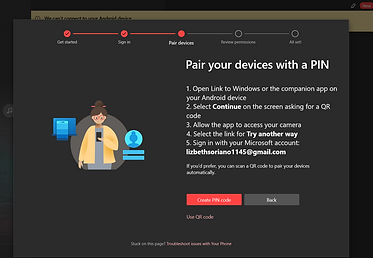
7.) If you decide to pair your device manually you must click on "Pair Manually" on your windows computer
8.) Click on "Create Pin code" in order to get your pin code from the computer.
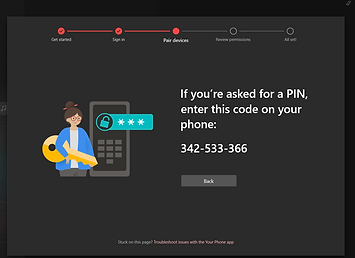
9.) Once the pin code is up the app will immediately pop up a number pad where you can insert its pin
10.) Wait a few seconds as both your devices are pairing up
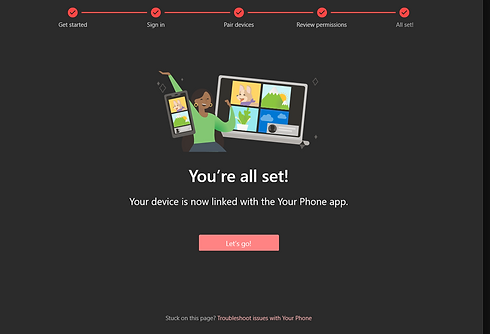
11.) Once devices finish connecting, windows will ask you for several permissions; these permissions will allow you to access content from your phone to your PC. Once accepted/unaccepted you will be all set!

.png)
.png)
.png)
.png)
.png)


.png)